Posts

What is Disk Management ?
Image
Disk Management is a system utility in Windows that was first introduced in Windows XP as a replacement for the fdisk command. It allows you to perform advanced storage tasks & It is an extension to Microsoft Management Console that allows complete management of disk based hardware detected by Windows. What is the Use of Disk Management ? It is used to manage the drives installed on a computer, such as optical drives, hard drives (internal and external ) & flash drives . It can be used to partition and format drives, assign drive letters, and more. Users can view and manage the drives installed on their computer through this and the partitions associated with those drives. What is Disk Management Availability? It is available in most versions of Microsoft Windows (Windows 11, Windows 10, Windows 8, Windows 7, Windows Vista, Windows XP, and Windows 2000). How to Open Windows Disk Management ? One of the simple way to access Disk Management is through the Computer Man...

Task Manager - What It is & How to Use It ?

Image
Task Manager shows you what programs are running on your Windows computer and offers limited control over running tasks. It is an operating system component found in all versions of Microsoft Windows starting with Windows NT 4.0 and Windows 2000. Windows Task Manager provides information about your computer's performance and displays detailed information about the programs and processes running on your computer. You can also view network status and quickly understand how the network is performing. How to Open Task Manager ? The easiest way to find something on a Windows computer is to search for it. Task Manager is no exception. In the search icon bar, type "Task Manager". Task manager is displayed as a search result and you can open it from there. How to Open Task Manager from Control Panel You can use the search option in Control Panel to open Task Manager. In the search bar, type "task manager" & you'll see a link to task manager under ...

What is the Control Panel in Windows ?

Image
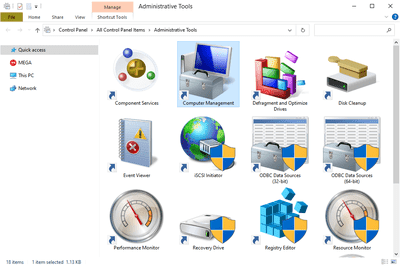
It is a component of Microsoft Windows, through the Control Panel we can see and change the system settings. What is Windows Control Panel ? Through Control Panel the user can change various hardware and software features of the computer.  It is usually part of the system's graphical user interface (GUI) that allows easy management and access to the panel components. We can change the settings of Mouse, display, sound, network, and keyboard in Control Panel. With the help of a control panel, we can install or remove hardware and software in the system. Additional applets are provided by third parties, e.g. VPN tools,  Audio and video drivers,  input devices and network tools. To open the Control Panel we must double click on the icon that is on the desktop, or by double clicking on the Control Panel icon in My Computer we can also open the Control Panel. Sections of the Windows Control Panel There are eight main sections in Control Panel that contain various tools to opti...

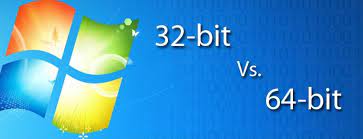
What is the Difference Between 32-Bit and 64-Bit?

Image
On computers, the difference between 32-bit and 64-bit is processing power. Computers with 64-bit processors are newer, faster, and more secure, while computers with 32-bit processors are slower and less secure. What are Bits in Computer ? Bit is the smallest unit of computer memory, when four bits are combined it is called a nibble, that is, 1 nibble = 4 bits byte (byte) and a group of 8 bits is called a byte. Both bits (32-bit and 64-bit) refer to the type of operating system , CPU, controller, software program, etc. that uses that particular architecture. A 32-bit computer processor can process 32-bit data at a time, and a 64-bit processor can process twice as much data at a time as a 64-bit data processor. Now one more thing, the processor needs RAM to process this data. You can use up to 4 GB of RAM on a 32-bit computer, while a 64-bit processor needs more RAM to process data. What is the Difference Between 32-Bit & 64-Bit? First it started with the processor. There are differ...

What is System32 in Windows?

Image
Windows operating systems have the system32 folder. The directory contains important files that are vital to the normal operation of Windows so it should never be deleted. The System32 directory is located in either C:\Windows\System32 or C:\Winnt\system32 directory. The system32 folders are copied to the hard drive during the initial installation of Windows, typically to C:\Windows\System32\. This applies to both 32-bit and 64-bit versions of Windows . Mostly important Windows system files reside in system32. The most common types of files in this directory are DLL (dynamic link library) and EXE (executable) files. Error messages often refer to files in this folder, especially DLL errors. It's also the only place you'll find the dasHost.exe file, which is used to connect to wired and wireless peripherals, such as a mouse or keyboard. DLL - DLL files allow Windows programs, both built-in programs and third-party utilities that you install, to perform various tasks. For...

How to Restore the Windows Registry

Image
If something went wrong while modifying the registry, Windows will not work properly due to registry corruption. You can easily restore Windows registry settings to a previous working state with the backup you made earlier. Restoring the registry files is a very simple task. First close if any application is running, then just open the location where you saved the backup and double click on it. How to Restore the Registry in Windows  You will be happy to know that restoring the back up is very simple if you backed up the registry in Windows – either a specific key , maybe an entire hive , or also the whole registry itself. You might be having problems after you changed a registry key or value , or the last time you edited the Windows registry didn't fix the problem you were trying to fix. In any case, you have been proactive and secured the registry in case something happened.  It takes usually few minutes to restoring previously backed up registry data in Windows. Find out ...

How to Backup the Windows Registry

Image
How to Backup of Windows Registry You should first create a backup before making any changes as it is very important to create proper backups. As an important part of Windows operation, Windows registry corruption can be a hindrance in your workflow. Registry backup file location Windows 11/10/8/7 includes a scheduled task that creates Windows registry backups periodically when the system is idle. These backups are stored in the following location used during system restore: C:\Windows\System32\config\RegBack How to Create Backup You can save or backup your registry using Regedit or the registry editor in Windows. Run regedit to start registry editor. The fastest way to do this is to run command from run dialog, which can access using the keyboard shortcut WIN+R. Make your way in the area of registry you want to backup. To back up the entire registry, find Computer to scroll to the top left of the registry (where all the folders are located). To create a backup of a specific regist...